Part 3 of 6 Watching and steering in a browser
Signed in, from a browser or a phone
By the end of this chapter, Keanu is working in his team's Subroutine from his own browser, having installed nothing, and the same address is an app on his phone.
This is the way in that asks least of you. Somebody else runs the instance; you are given an address and a link, and you are in.
The work so far
Laurence has an instance on a server, serving at https://tasks.example.com, with a workspace called metacortex for the team's work. Running one for other people comes later in this guide, and does it properly: an account of its own, a proxy in front, and a service manager to keep it up. These are the fewest commands that get to the same place:
uv tool install subroutine
subroutine init --workspace metacortex --instance-name MetaCortex
printf 'public_url = "https://tasks.example.com"\n' >> ~/.config/subroutine/config.tomlsubroutine serve
What to ask for
The address, which is all a browser needs. https://tasks.example.com here.
A token, if you are also going to use a terminal or point an agent at the instance. It is a different credential for a different door, and the next two chapters use it.
The workspace, if the instance holds more than one. Most hold one and you will never hear the word.
There is nothing to create on your side, no key to exchange, and no configuration file to write.
An account, and the way in
One command makes the account and hands over the ways in. Laurence runs it:
subroutine user create keanu --name "Keanu Reeves" --browser --terminal | tee /tmp/for-keanu
| tee /tmp/for-keanu keeps a copy of what it printed. Send that to Keanu however you would send anything private: the link signs in as him, and the token acts as him.
subroutine user createmakes the account, puts them in the workspace, and gives them a role, which ismemberunless you say otherwise.--browserproduces the sign-in link, and--terminalthe token. They are not alternatives: somebody who uses both doors needs both.- The Inbox is shared. Anything filed in the workspace without naming a project lands there, and everybody in the workspace sees it, which is worth telling somebody before their own errands go there too.
Signing in
Keanu has the message and no Subroutine at all. He opens the link in a browser, and the page asks Sign in as keanu? with one button, Continue as keanu. Pressing it is the whole of it, and the browser is then signed in.
The lines below are Keanu's, and they take the message out of that file, which stands in for whatever it was actually sent in:
instance=https://tasks.example.com
link=$(grep -o "$instance/signin?link=[^ ]*" /tmp/for-keanu)
curl -so /dev/null -w '%{http_code}\n' "$link"
curl -s -c /tmp/jar -X POST "$instance/signin" \
-H "Origin: $instance" \
--data-urlencode "link=${link#*link=}" \
-o /dev/null -w '%{http_code}\n'
200 is the page that asks, and 303 is the instance taking the link once the button is pressed, signing the browser in and sending it on to the page. Asking first is what makes a link safe to send: opened by the wrong person, or fetched by a chat app for its preview, it signs nobody in.
A token will not open a browser
The other credential in that message is for a terminal. Putting it where the link goes does not sign anything in:
token=$(grep -o 'sr_[A-Za-z0-9_-]*' /tmp/for-keanu | tail -1)
curl -so /dev/null -w '%{http_code}\n' "$instance/signin?link=$token"
They are different credentials for different doors, and having one does not get you the other. If a browser will not let you in, it is a link you need, and asking for another costs nothing.
What is there
The agenda, the list and the board, as Watch it happen describes them: your work, everything in the workspace, an item in full, and a box that takes a new task.
The page is drawn from what your account may do. Where you may not write, the controls for writing are absent rather than present and refused: no capture box, no Complete, no Edit, no comment box. That is a role rather than a fault, and whoever set you up can change it.
A screen that only reads
That is also how an instance is put on a wall. A viewer account reads and does nothing else:
subroutine user create screen --name "Office screen" --role viewer --terminal | tee /tmp/for-screen
A role holds at every door, not only in the page. Here is one request made twice, with Keanu's credential and then with the screen's:
new='{"text":"Order a new phone for reception"}'
mine="Authorization: Bearer $token"
wall="Authorization: Bearer $(grep -o 'sr_[A-Za-z0-9_-]*' /tmp/for-screen | tail -1)"
curl -so /dev/null -w 'keanu %{http_code}\n' -H "$mine" --json "$new" $instance/v1/tasks
curl -so /dev/null -w 'screen %{http_code}\n' -H "$wall" --json "$new" $instance/v1/tasks
So the page is not hiding a button that would have worked: the instance refuses the write underneath it.
Here is the list as the screen shows it, with Keanu's new task on it:
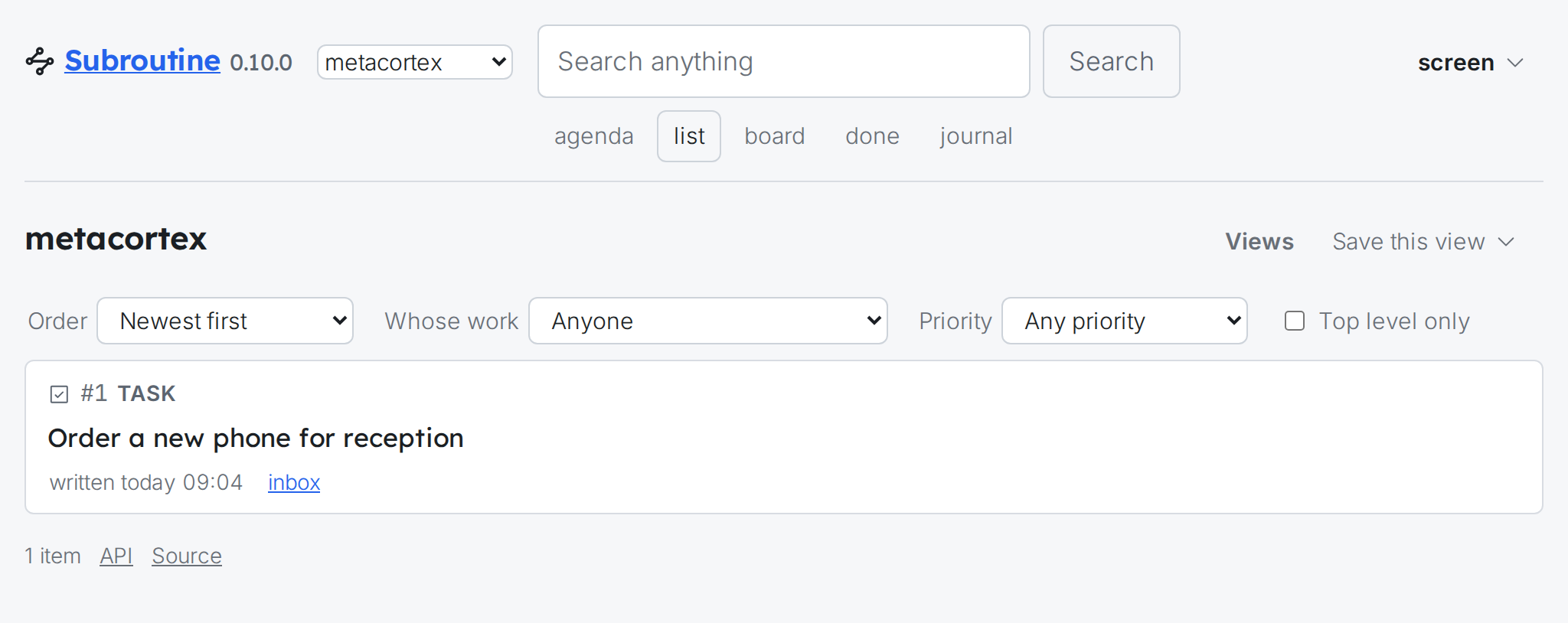
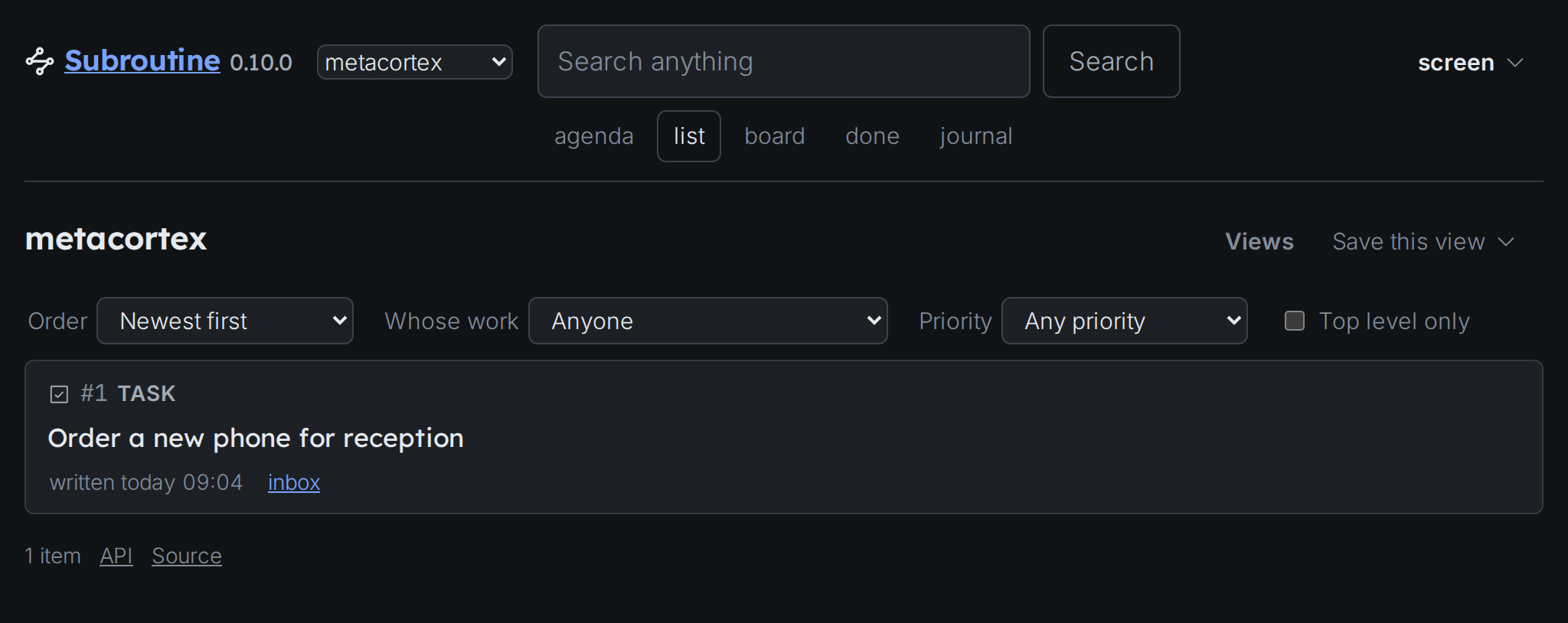
Nothing on it offers to change anything. It is a page to read from across a room.
On your phone
The same address installs as an app, with an icon of its own, a window with no address bar, and a place in the app switcher. There is nothing to download from a store.
What makes that possible is served by the instance itself, and it carries the address:
curl -s $instance/app/manifest.webmanifest
That name is what the icon is called, and it carries the address because that is what tells two of them apart on one home screen.
The rest is your browser's own, and differs between them:
- Sign in first, in the browser you want the app in. Paste the link rather than tapping it: a tapped link opens in whichever browser the device treats as the default, and the one it signs in is the browser where you press Continue.
- Check your work is there. The app inherits that browser's session.
- Install it from the browser's own menu, where it is called Install, Install app or Add to Home Screen. It is never a control on the page.
- Open it from the home screen. It comes up signed in.
Here is Keanu's, opened from his home screen:
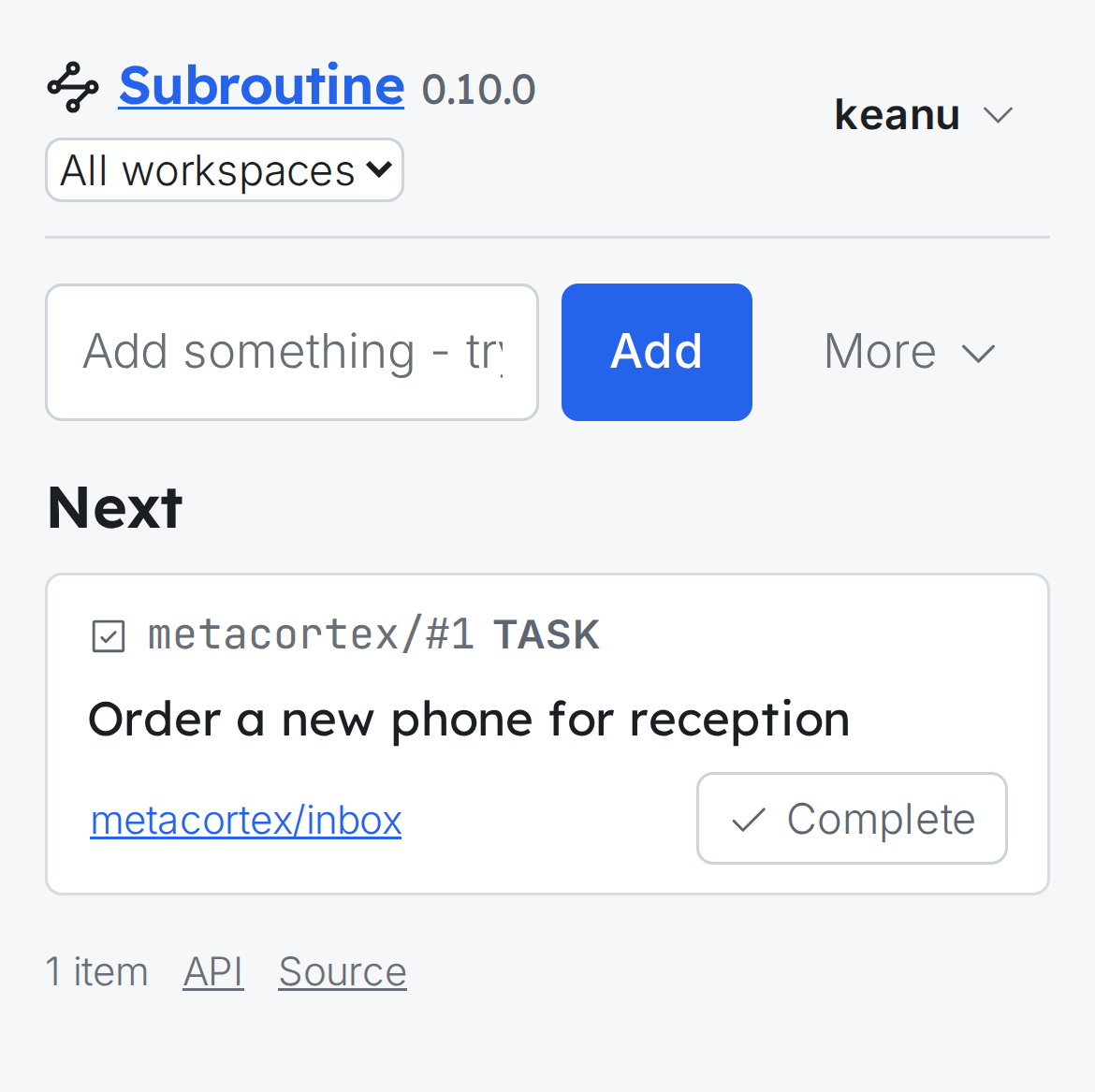
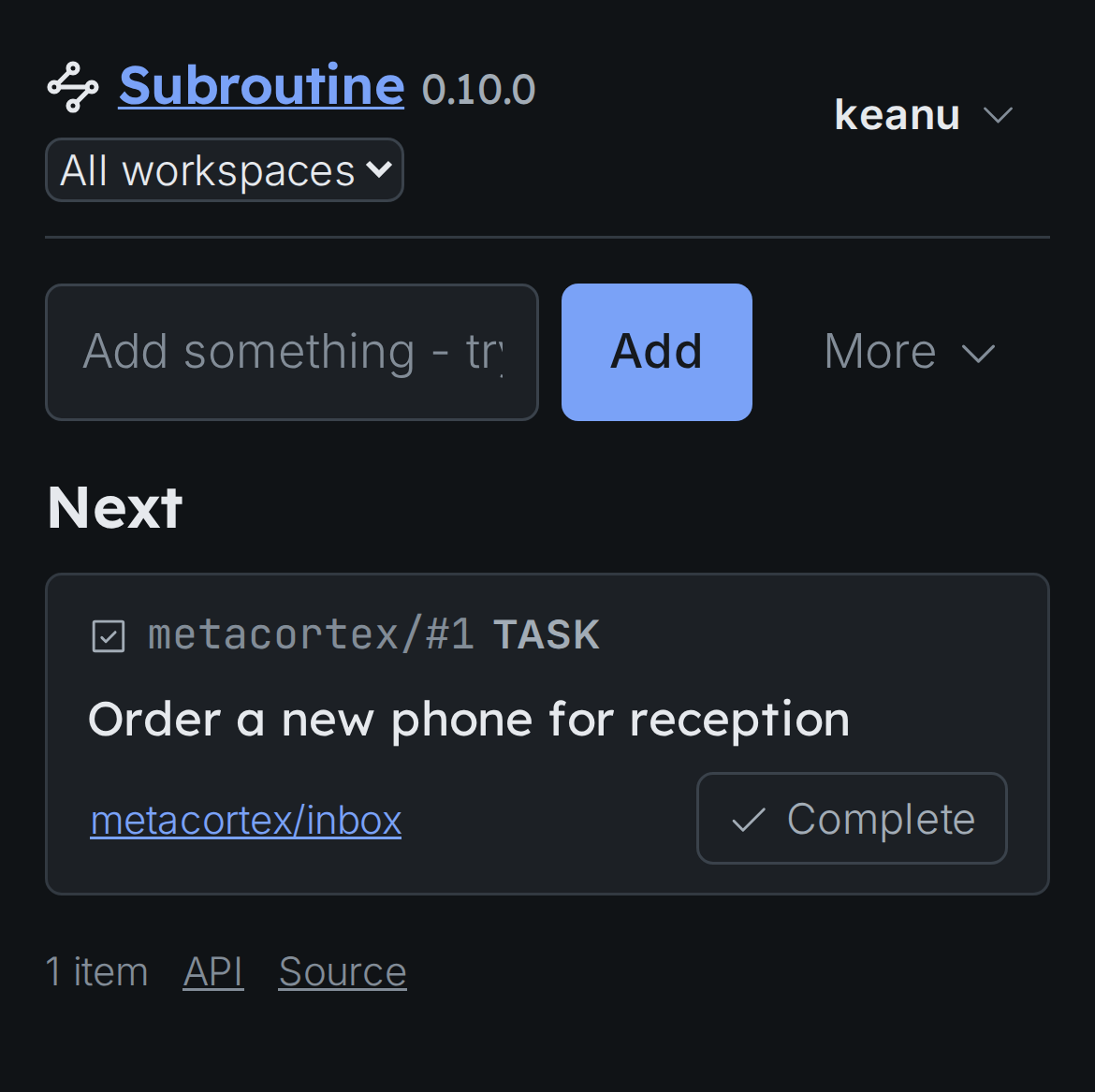
It is the same page, laid out for the width: the header wraps, and the box keeps its place at the top.
If your browser's menu offers nothing, try another one: browsers differ about when they will install a page and what they make when they do. Nothing is stored on the device either way, so it needs the network exactly as the page does.
Use a browser that keeps its cookies. Anything that erases them when you leave needs a fresh link every time.
Signing out
Sign out is in the menu under your name, and it ends that browser. Removing the icon from a home screen signs nothing out.
Whoever runs the instance can end it for you, on every browser at once, which is what a lost phone needs:
subroutine login revoke keanu
Two: the browser he signed in at first, and his phone's.
That leaves his token alone: subroutine token revoke is the one for the other door.