Part 1 of 6 The first minute
Watch it happen
By the end of this chapter, the work is on a page in your browser, signed in without a password, and you can leave it open on a second screen and watch your agent file and change things as it works.
It is the same database the commands read and the tools write, drawn as a page. There is nothing new to install.
The work so far
The commands of Install it, and tell your agent: Subroutine installed, a project for the website rebuild, an account for the agent, and one task filed by asking for it.
uv tool install subroutine
subroutine init
subroutine project create web "Website rebuild"
subroutine agent create claude --profile worker --project web --store
subroutine add "Write the copy for the home page +web"
And the MCP server the plugin configures for Claude Code:
{
  "mcpServers": {
    "subroutine": {
      "command": "subroutine",
      "args": ["mcp"]
    }
  }
}
Serve it
subroutine serve is the whole of it:
subroutine serve
Leave it running. The page is there for as long as that command is, and Ctrl-C stops it.
It names two more addresses under that one, /v1 for the HTTP API and /mcp for an agent that connects over HTTP rather than starting Subroutine itself. Neither is a page to open: they are how a program reaches this instance.
The address it names is 127.0.0.1, your own machine and nothing else: a program on your computer can reach it, and nothing on your network or beyond it can. That is the default, and it is why nothing you have done so far has exposed anything. Serving the work to other people is a job of its own, with an address and a certificate of its own, and it comes later in this guide.
A way in
Signing in is a link rather than a password. Print one in a second terminal, leaving serve running in the first:
subroutine login link
subroutine login link signs in as whoever it names, and says how long this one lasts. It works once, in the browser that uses it.
Treat it as a password for as long as it lives. Anybody holding it is you, so hand it over the way you would hand over a password, and think before pasting it anywhere that keeps a history.
Paste it into your browser's address bar. The page asks before it signs you in: Sign in as laurence?, with one button, Continue as laurence. Press it, and you are in. Opening a link signs nobody in by itself, so a link that reached the wrong person, or that a chat app fetched to show a preview, is still unused until somebody presses that button.
What is there
It opens on your agenda, which answers what am I doing today:
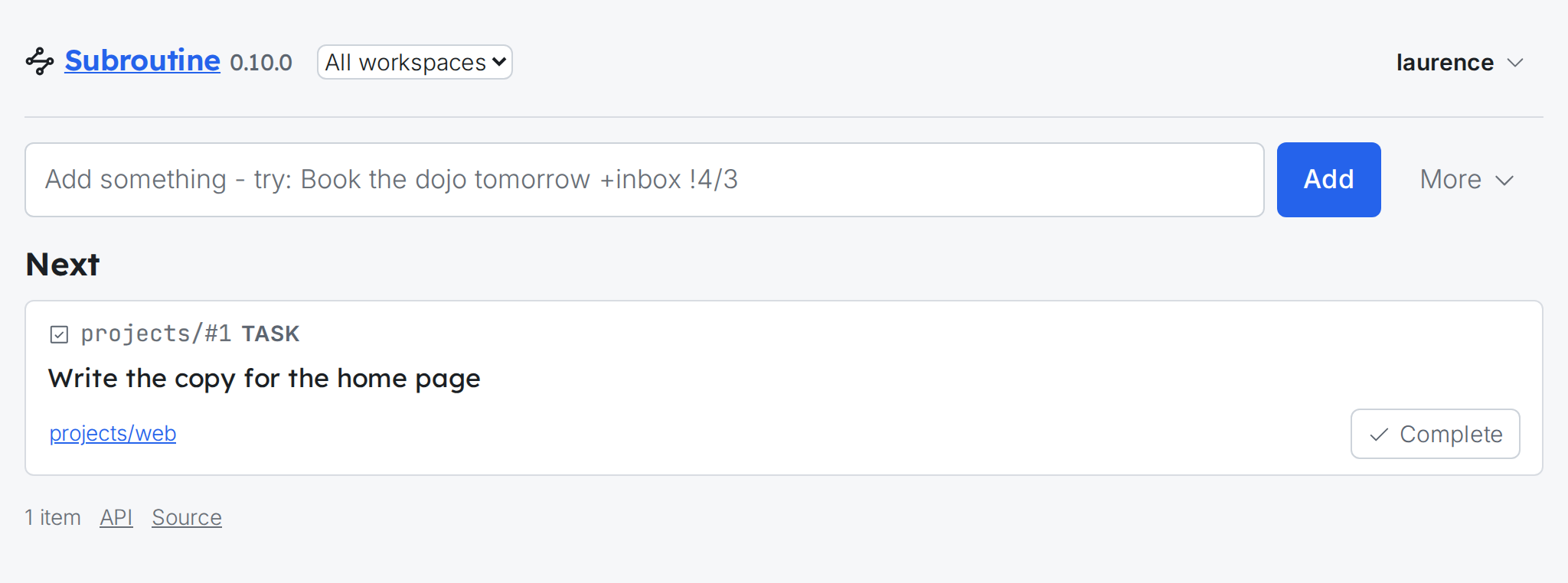
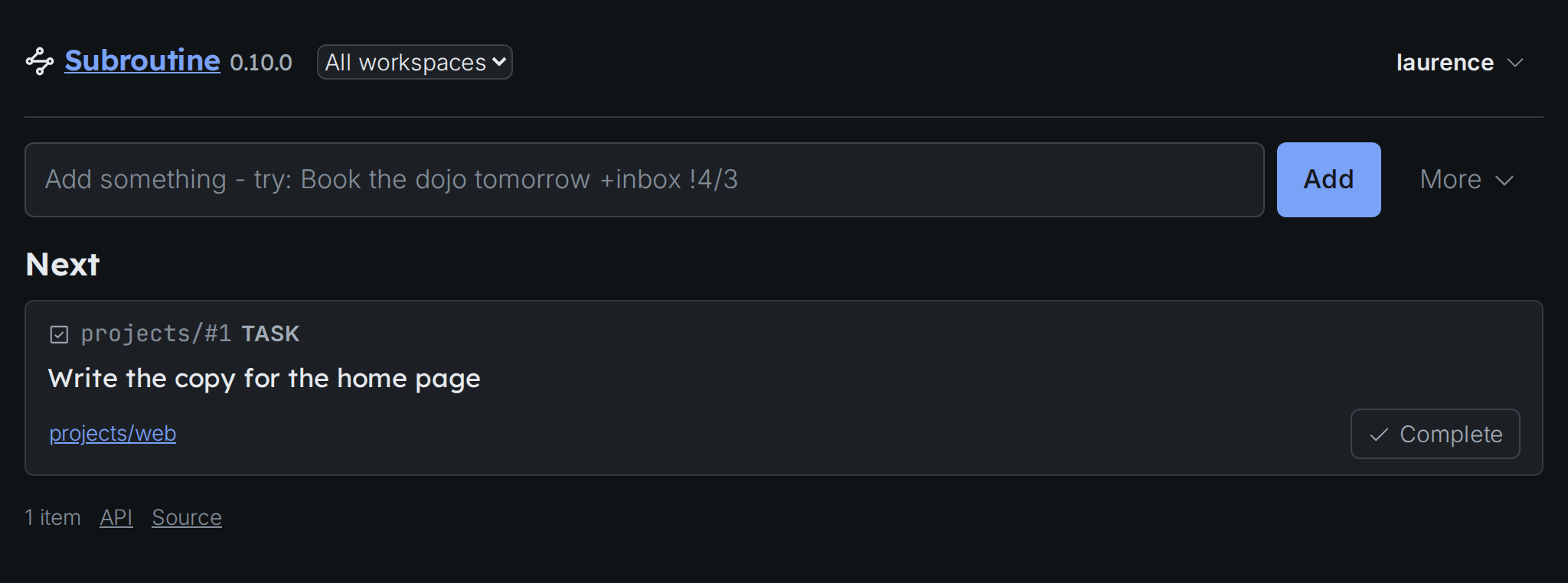
That task is the one your agent filed in the last chapter. It sits under Next because it has no date and nobody is waiting on it; once work has a date, has been started or has somebody waiting on you, the agenda groups it in the sections subroutine agenda prints, in the same order. Complete finishes it, and clicking it opens the whole of it.
The box at the top takes a new task in the same shorthand subroutine add takes, so you can file work here without going back to a terminal, which Filing and steering without a terminal covers in full.
The agenda is one of three views. Choose your workspace, Projects, in the menu beside the name, and tabs for the others appear: a list of everything, tasks and documents together, and a board whose columns are what state the work is in. The agenda, the list and the board says which question each one answers.
Now leave it open
This is what the second screen is for. The page refreshes itself every few seconds, so you do not reload it and you do not interrupt anything to ask how it is going.
Ask your agent for the next piece of work while you watch:
subroutine_add(text="Choose a typeface for the headings by Tuesday +web")
It appears on the page within a few seconds, in the project, dated: the agent read by Tuesday out of the sentence and left it out of the title. You did not type the date, and neither did it.
In your own terminal, without asking the page for anything, the same task is already there:
subroutine agenda
It is one database. A task you add in the page is on your agenda at the terminal and in your agent's next answer, and the other way round. Nothing synchronises, because there is nothing to synchronise.
That is the arrangement this guide is really about: your agent doing the work and writing down what it did, and you reading it as it happens rather than being told about it afterwards.
Proving it without a browser
A browser is not the only thing that can follow the link, which matters when it is your agent setting this up rather than you. Take a fresh link and give it to curl:
link=$(subroutine login link | grep -o 'http://[^ ]*')
curl -s -o /dev/null -w '%{http_code}\n' "$link"
200 is the page that asks. Pressing its button sends the link back to the instance, and the instance takes it only from its own page, which a browser says in the request's Origin. From another site's page, it is refused:
curl -s -X POST http://127.0.0.1:8471/signin \
-H 'Origin: https://elsewhere.example' \
--data-urlencode "link=${link#*link=}" \
-o /dev/null -w '%{http_code}\n'
So a site you happen to have open cannot post a link of its own and sign you into its account. From the instance's own page, it is taken:
curl -s -c /tmp/jar -X POST http://127.0.0.1:8471/signin \
-H 'Origin: http://127.0.0.1:8471' \
--data-urlencode "link=${link#*link=}" \
-o /dev/null -w '%{http_code}\n'
303 is the instance signing the request in and sending it on to the page. Follow the same link again:
curl -s -o /dev/null -w '%{http_code}\n' "$link"
It is spent, and a spent link is refused rather than repaired: the answer is always another link.
Signing out
A browser stays signed in while you keep using it. Leave it alone long enough and the session ends, and the next visit asks for a fresh link; using it before then puts that off again. So a browser you open most days never asks twice, and a device somebody else walked off with stops working on its own before long.
To end it now, on every browser at once, name the person:
subroutine login revoke laurence
The two it counts are your browser and the one curl signed in above.
subroutine login revoke takes any unused links with it. It is what a lost laptop needs, and it leaves that person's API tokens alone.
From here on, subroutine serve is all it takes to see the page again. The next part is what your agent can do once it has somewhere to put things.